How to Back Up Your Notion Workspace: The Complete Guide
Notion stores every page, database, file, and edit history on its servers. That arrangement is fine until it isn't — until a service outage locks you out, an account suspension wipes the workspace, or a bulk-delete propagates faster than you noticed. The platform's own help docs describe a "shared responsibility model" in which you are responsible for the backup.
This guide walks through the four ways to actually back up Notion data — Notion's built-in export, cloud backup services, the API direct, and local backup tools — what each one gets right, where each one breaks, and which one to use for which threat model.
What you are actually backing up against
Three failure modes matter, and the right backup strategy depends on which one you're trying to survive.
1. Outage. Notion has logged over 450 incidents on StatusGator since 2020. Most resolve within an hour. A backup taken last week is enough.
2. Accidental deletion. Notion's 30-day page history covers the easy case. Past 30 days, or for a deleted workspace, the history is gone with the workspace. A weekly backup from outside Notion's system is enough.
3. Account suspension. Rare, but terminal. Notion reserves the right to suspend accounts for ToS violations, with no obligation to return your data. If your only copy lives in your locked workspace, it might as well not exist. The only backup that survives this is one stored somewhere Notion cannot reach.
Failure modes 1 and 2 are tolerable with almost any backup. Failure mode 3 is the one most backup strategies quietly fail.
Method 1 — Notion's built-in workspace export
The free option, available to everyone. Settings → Settings & Members → Settings → Export all workspace content. Notion runs the export server-side and emails you a link to a ZIP file.
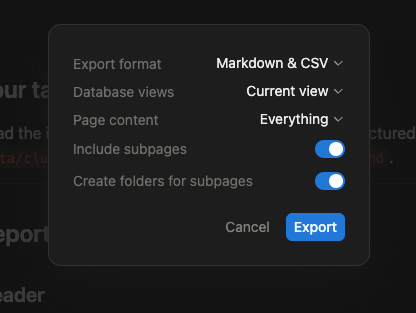
What you get: Markdown + CSV (or HTML, or PDF), one folder per top-level page, nested page folders inside, attached files alongside.
Where it breaks:
- Manual. There is no schedule. You run it when you remember. Most people remember after they need it.
- Server-side timeout on large workspaces. Workspaces over ~500 MB, or those with deep relational databases, can hit the export timeout and fail with no partial result. The Notion subreddit has years of threads on this.
- Mangled filenames. Every file gets a 32-character hex page ID appended, so
Project planbecomesProject plan 8b7e2a4f...— unreadable as-is, scriptable to clean up. - Windows path length. Deep page trees produce paths over 260 characters. Windows refuses to extract them without long-path support enabled at the OS level.
- Database relations collapse. Related pages export as raw internal IDs, not titles. Reconstructing a relation graph from an export is non-trivial.
- Rich content in table cells gets flattened. Images, file embeds, and checkbox formatting inside a database row become plain text.
Good for: One-off snapshots before a workspace cleanup. Annual archive of small workspaces. Disaster-recovery dry runs.
Bad for: Routine backups. Workspaces > 500 MB. Anyone on Windows with deep page nesting.
Method 2 — Cloud backup services
Three services automate Notion backups today: Notion Backups (from $6/month), BackupLABS, and Backups.so. All three use the same pattern: connect Notion via OAuth, poll the API on a schedule, store the result on the service's own infrastructure or a cloud provider you point them at (Google Drive, Dropbox, S3).
What they get right:
- Scheduling. Daily or hourly runs, no human in the loop.
- API-driven. They use Notion's official API, so they see live data — not a stale export.
- Versioning. Most retain multiple historical snapshots, so a corrupted page yesterday doesn't overwrite a clean copy from last week.
Where they break:
- Privacy. Your workspace contents — journals, financial notes, draft contracts, anything — pass through and sit on a third-party server. You trust the provider to encrypt at rest, never inspect content, withstand breaches, and stay solvent. For most workspaces that's an acceptable trust handoff. For some it isn't.
- Cost compounds. Notion Backups' Pro plan is $28/month, $336/year. The backup tool can cost more than Notion itself.
- API limits. Notion's API rate-limits aggressively. Very large workspaces (5000+ pages) hit those limits, and the backup either takes hours or fails partway.
- Vendor lock-in on schedule. If the service shuts down, your scheduled backup vanishes with it — and your saved snapshots may or may not be retrievable depending on the contract.
Good for: Teams. Workspaces where the threat model is "outage or deletion, not provider trust." Anyone willing to pay for set-and-forget automation.
Bad for: Personal workspaces with sensitive content. Anyone whose threat model includes "what if the backup provider gets breached."
Method 3 — The Notion API, direct
For developers, the official Notion API is the cleanest pipe. Authenticate with an integration token, paginate through pages and databases, write the JSON wherever you like.
This is exactly what the cloud backup services do internally — you just run it on your own machine.
A minimal Python sketch:
import os, json, time
from notion_client import Client

notion = Client(auth=os.environ["NOTION_TOKEN"])
results, cursor = [], None
while True:
    page = notion.search(start_cursor=cursor, page_size=100)
    results.extend(page["results"])
    if not page["has_more"]: break
    cursor = page["next_cursor"]
    time.sleep(0.4)  # avoid rate-limit

with open(f"notion-{int(time.time())}.json", "w") as f:
    json.dump(results, f)
What you get right: Full control, local-only, no third party, scriptable into a cron job.
Where it breaks:
- Block content fetches are recursive and slow. A single page can require hundreds of API calls to fully serialise nested blocks, toggles, sub-pages, and embedded databases.
- You're rebuilding what cloud services already wrote. Pagination, retries, rate-limit handling, attachment downloads, schema-drift handling, restore tooling — all of it ends up in your script.
- No restore path comes for free. A JSON dump is not the same as something you can put back into Notion. Restoration is its own project.
Good for: Developers who want a single weekly cron-driven JSON snapshot and don't need a restore path.
Bad for: Anyone who wants something they didn't have to write themselves.
Method 4 — Local backup tools
A small set of tools take a different approach: run inside the user's browser session (Chrome extension), read pages through Notion's own authenticated session, and write the result to the user's filesystem. Nothing ever leaves the machine.
Notion Vault is the one we built, and it is the category we know best. Its design constraints:
- Local-only. Output goes to a folder the user picks. No upload step, no cloud account, no server.
- Browser-authenticated. Uses the same Notion session the user is already logged into. No API token to manage.
- Markdown output. Files are human-readable today and don't depend on Notion's continued existence to be useful tomorrow.
- Scheduled. Set a cadence; the extension runs when Chrome is open.
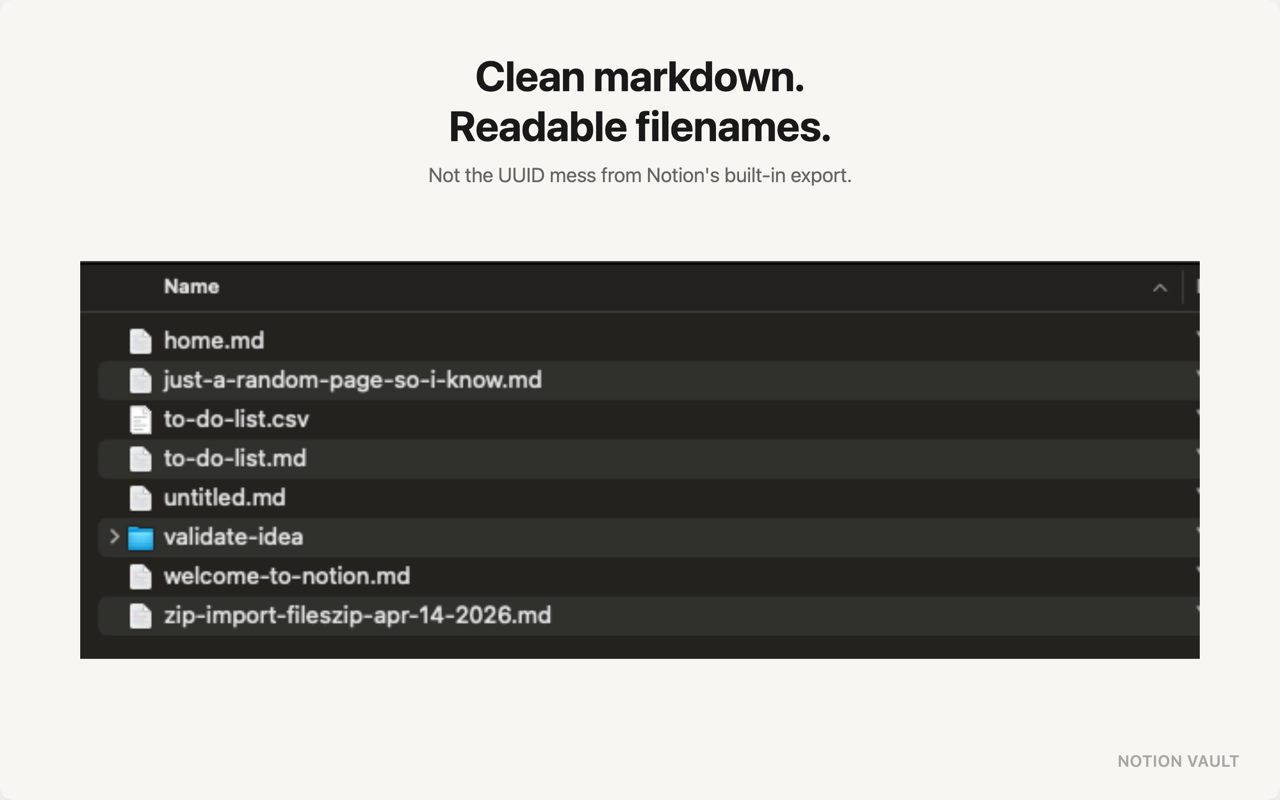
What this category gets right:
- Privacy. Data does not pass through anyone's server. Not Notion Backups', not ours.
- Free or very cheap. No infrastructure to run, so the price floor is low.
- Survives account suspension. If Notion locks you out tomorrow, the local folder is still there.
Where this category breaks:
- Browser dependency. No browser session, no backup. Works for personal/single-account workspaces; less appropriate for team workflows where backups should run independent of any one person's machine.
- Live-session edge cases. A page that's currently being edited in another tab can produce an inconsistent snapshot. Rare in practice.
- Restore. Like the API-direct approach, restore from markdown isn't a one-click operation. You get readable files, not a workspace-import bundle.
Good for: Personal workspaces. Privacy-sensitive content. Anyone whose threat model includes provider compromise. Anyone for whom $336/year is not the right price for "back up the tool that costs $96/year."
Bad for: Multi-person teams that need backups to run regardless of any individual's device state.
Which method fits which threat model
| Concern | Built-in export | Cloud service | API direct | Local tool |
|---|---|---|---|---|
| Outage recovery | ✓ | ✓ | ✓ | ✓ |
| Accidental deletion past 30 days | ✓ | ✓ | ✓ | ✓ |
| Account suspension | ✓* | ⚠️** | ✓ | ✓ |
| Provider breach / inspection risk | ✓ | ✗ | ✓ | ✓ |
| Runs on schedule | ✗ | ✓ | ✓ (with cron) | ✓ |
| Large workspaces (>500 MB) | ✗ | ⚠️ | ✓ | ✓ |
| Cost | free | $ | free | free / $ |
* Survives only if you exported recently. ** Survives if the cloud service stays online — but if your Notion account is suspended for the same reason their access is revoked, the live sync stops.
What we'd actually do
For most users, the cheapest fit is Notion's built-in export quarterly (for a known-good archive) plus a local tool weekly (for the live working set). The two together cover all three failure modes for free.
For teams or developers who already run infra, a scheduled API-direct script to a private S3 bucket is hard to beat — and the script doubles as input to whatever internal search/analysis you might do with the JSON anyway.
The case for a paid cloud service is real but narrower than the marketing suggests: teams without internal infra capacity, or individuals who explicitly trust a specific provider more than their own backup discipline. Once you read the privacy tradeoff out loud, that group is smaller than it looks.
Further reading
- Notion Offline Backup: Keep Your Data on Your Machine — the local-only angle in depth, with worked examples of recovering from each of the three failure modes.
- Notion Vault on the Chrome Web Store — the local-tool implementation referenced above.
- Notion's own export docs — for the manual method.